

Authentication Options
Autonoma supports multiple authentication methods. Choose the one that matches your application:Email and Password
Magic Link
Header or Cookie Bypass
IP Whitelisting
Why Application Configuration Matters
Before you can test your application with Autonoma, you need to set it up properly. This involves two key steps:- Adding your application to Autonoma (telling it what to test)
- Configuring authentication (how your tests will access protected features)
Step 1: Adding Your Application
To start running tests, you first need to add the application (either web or mobile) you plan to test.For Web Applications
-
Add a Name
Provide a name for the web application. This helps you easily identify it in your list of available applications. -
Enter the URL
Add the URL where the web application is hosted. This could be a public-facing URL or an internal testing environment URL. -
Set an Environment Tag
Assign an environment tag to indicate where the web app is running. Common tags include Prod, Staging, QA, but you can also create custom tags specific to your business needs (e.g., Dev, Beta, etc.).
For Mobile Applications
-
Add a Name
Provide a name for the mobile application so you can easily identify it. -
Upload the Application File
Upload the mobile app file (.apk for Android, .app for iOS) that you want to test. This is the app version you’ll be interacting with during your tests. -
Add a Version Tag
Specify the version of the mobile app, such as 1.x, 2.x, etc., to distinguish between different releases or iterations.
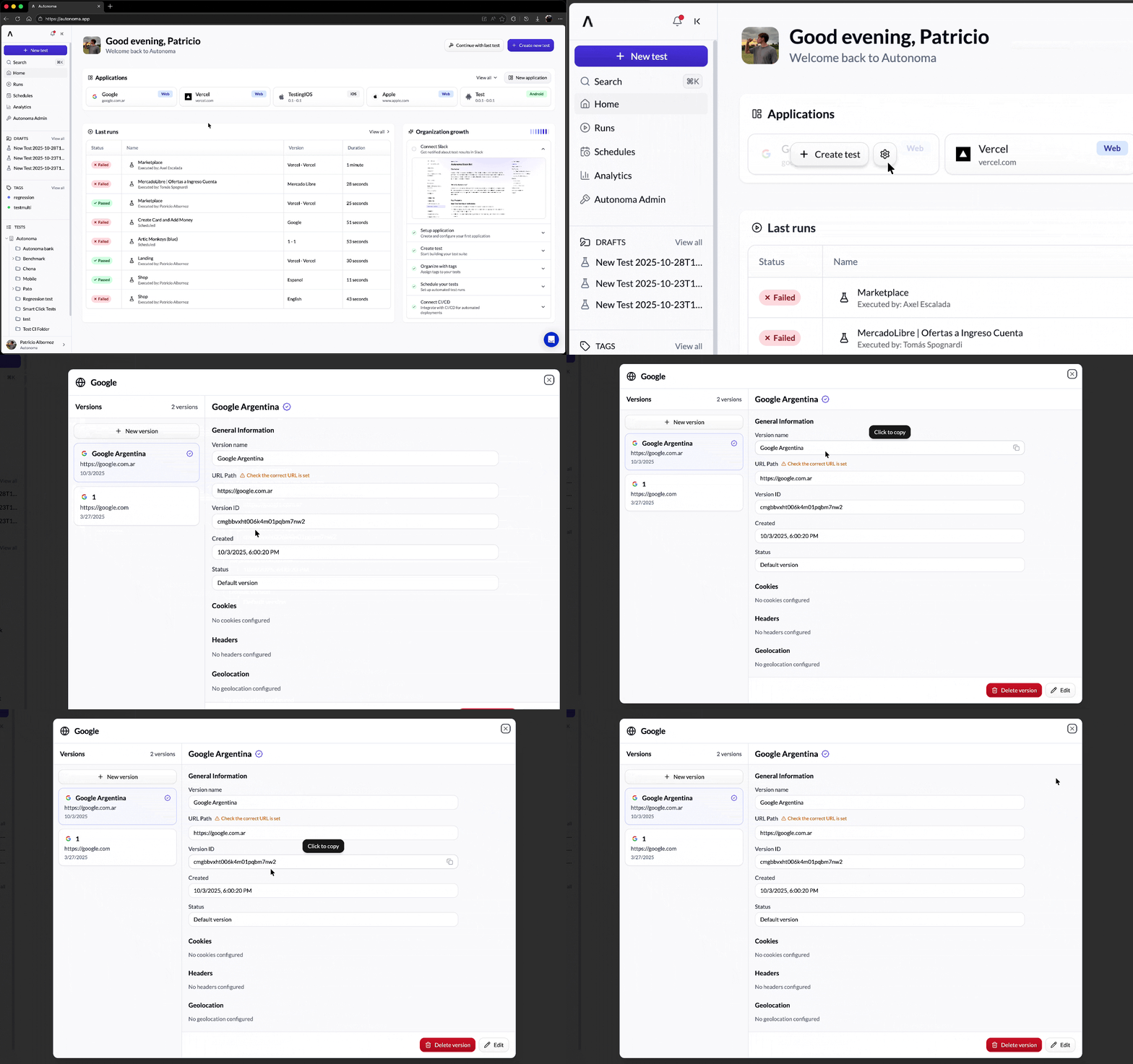 Once you’ve uploaded the application (and version), it’s now ready to be used! You can immediately start building and running tests over it. This allows you to test web and mobile apps effectively by simulating user interactions, verifying functionality, and ensuring quality across different versions and environments.
Step 2: Configuring Authentication
Now that your application is added, you need to configure how your tests will authenticate. Let’s identify what type of authentication your application uses.Email and Password
This is the recommended approach if your application uses traditional username/password login.How It Works
Your tests will:- Navigate to your login page
- Enter the email address
- Enter the password
- Click the login button
- Verify successful login
Step-by-Step Setup
Step 1: Create a Test Account Before setting up Autonoma, create a dedicated test account in your application: Best practices for test accounts:- Use a dedicated email:
autonoma-test@yourcompany.com - Use a secure but memorable password
- Give it appropriate permissions (usually similar to a regular user)
- Don’t use a real customer account
- Document the credentials securely
- Won’t interfere with real user data
- Can be reset/cleaned up between test runs
- Makes it clear which traffic is from tests
- Log into Autonoma
- Go to your application settings
- Select “Email and Password” as your authentication method
- Enter your test account credentials
- Go to Variables section in your Autonoma project
-
Create variables:
TEST_EMAIL=autonoma-test@yourcompany.comTEST_PASSWORD=your-secure-password
-
In your tests, reference variables:
- “Type
{{variable:TEST_EMAIL}}in email field” - “Type
{{variable:TEST_PASSWORD}}in password field”
- “Type
- Change credentials in one place, updates all tests
- Makes tests more readable
- Easier to manage multiple test accounts
- Can have different credentials for staging vs. production
Common Issues and Solutions
Issue: Test fails at login every time Possible causes:- Credentials are incorrect (typo in email/password)
- Login page has changed
- Rate limiting is blocking automated logins
- CAPTCHA is appearing
- Verify credentials work manually
- Update test if UI changed
- Contact your dev team about whitelisting Autonoma’s IP
- Ask dev team to disable CAPTCHA for test accounts
- Ask your dev team to extend session timeout for test accounts
- Or create a “re-login” test step you can reuse when sessions expire
Magic Link
Magic links are special URLs sent via email that log users in when clicked. Testing these requires accessing email programmatically.
How It Works
Autonoma provides special interactions that let you:- Generate a temporary email address that can receive emails
- Input the generated email on the login form
- Request a magic link (sent to that email)
- Wait for the email to be sent and received
- Extract the magic link from the email
- Navigate to the extracted URL to complete login
Step-by-Step Setup
Step 1: Create a Magic Link Login Test Here’s how to structure your test:Common Issues and Solutions
Issue: Email doesn’t arrive Possible causes:- Email generation failed
- Your app doesn’t recognize the generated email domain
- Email is caught in spam filters
- Check that the email address was actually generated (look at test output)
- Ask dev team to whitelist
@autonoma-test.comdomain - Add a wait: “Wait until email arrives” with longer timeout
- Email format changed
- Link is encoded or hidden
- Multiple links in email
- Be more specific in your retrieval prompt
- Ask dev team for the email template structure
- Look at a real magic link email for reference
Header or Cookie Bypass
This is the fastest and most reliable approach if your development team can support it. Instead of going through the login flow, you pass special authentication credentials directly via HTTP headers or cookies.Benefits
- Fast: No login flow needed, tests start immediately
- Reliable: No risk of login UI changes breaking tests
- Simple: One configuration, works for all tests
- Clean traffic: Easy to identify and filter test traffic
Option A: Authentication Header
Request to dev team: “Can you add support for a special authentication header that bypasses login for our Autonoma tests?” Example implementation (they’ll understand):- Header name:
X-Test-Auth - Header value:
autonoma-test-token-12345
Option B: Authentication Cookie
Request to dev team: “Can you add support for a special authentication cookie that bypasses login for our Autonoma tests?” Example implementation:- Cookie name:
test_auth - Cookie value:
autonoma-test-token-12345
- Share this guide with your development team
- Ask them to implement either header or cookie bypass
- Get the exact header/cookie name and value they implemented
- Confirm it works in staging/test environments
- Go to your application settings in Autonoma
- Select “Authentication Header” or “Authentication Cookie”
- Enter the header/cookie name
- Enter the header/cookie value
- Save configuration
Security Considerations
Your dev team might worry about security. Reassure them:- Only enable in non-production environments (staging, test, dev)
- Use a secret token that’s not easily guessable
- Combine with IP whitelisting (Option 5) for extra security
- Log bypass usage so you can monitor it
IP Whitelisting
IP whitelisting means your application only allows access from specific IP addresses. This is often used in addition to other authentication methods.Autonoma’s Static IP
Autonoma uses a static IP address for all test execution:Step-by-Step Setup
Step 1: Provide IP to Your Dev Team Send this message to your development or DevOps team:- Create a simple test that accesses your application
- Run the test
- Verify it can access your app without IP-related blocks
Choosing the Right Authentication Strategy
Here’s a decision guide:Use Email/Password When:
- ✅ Your app uses traditional login
- ✅ You want the simplest setup
- ✅ You don’t need maximum speed
- ✅ Your team can’t implement bypass headers
Use Magic Link When:
- ✅ Your app uses passwordless authentication
- ✅ You’re comfortable with email automation
- ✅ Your app supports temporary email domains
Use Header/Cookie Bypass When:
- ✅ You want the fastest tests possible
- ✅ Your dev team can support it
- ✅ You test frequently
- ✅ You want maximum reliability
Use IP Whitelisting When:
- ✅ Your app needs IP-based security
- ✅ You want to restrict test access
- ✅ You’re using it alongside another method
Recommended Combinations
Best for most teams: Email/Password + Variables Best for speed: Header Bypass + IP Whitelisting Best for passwordless apps: Magic Link + IP WhitelistingNext Steps After Configuration
Once your application is configured:- ✅ Create a login test (if using email/password or magic link)
- ✅ Verify it works by running a simple test
- ✅ Document your setup for your team
- ✅ Start creating feature tests (now that you can access your app)
- ✅ Set up CI/CD integration (Integrate With CI/CD →)
Troubleshooting Common Issues
Tests can’t access the application
Check:- Is IP whitelisting configured correctly?
- Is the application URL correct?
- Is the environment (staging/production) accessible?
Login tests keep failing
Check:- Are credentials correct?
- Has the login UI changed?
- Is there a CAPTCHA appearing?
- Is rate limiting blocking automated logins?
Magic links aren’t working
Check:- Is the email domain whitelisted?
- Is the email actually being sent?
- Is the link extraction prompt specific enough?
- Are you waiting long enough for the email to arrive?
Header/cookie bypass not working
Check:- Did dev team actually implement it?
- Is the header/cookie name exactly correct (case-sensitive)?
- Is the header/cookie value exactly correct?
- Is it enabled in the environment you’re testing?
Key Takeaways
- Application setup requires two steps: adding the app and configuring authentication
- Email/password is simplest but requires maintaining test accounts
- Magic links are possible using Autonoma’s email interactions
- Header/cookie bypass is fastest and most reliable with dev team support
- IP whitelisting adds security and works well with other methods
- Use variables to manage credentials across all tests