

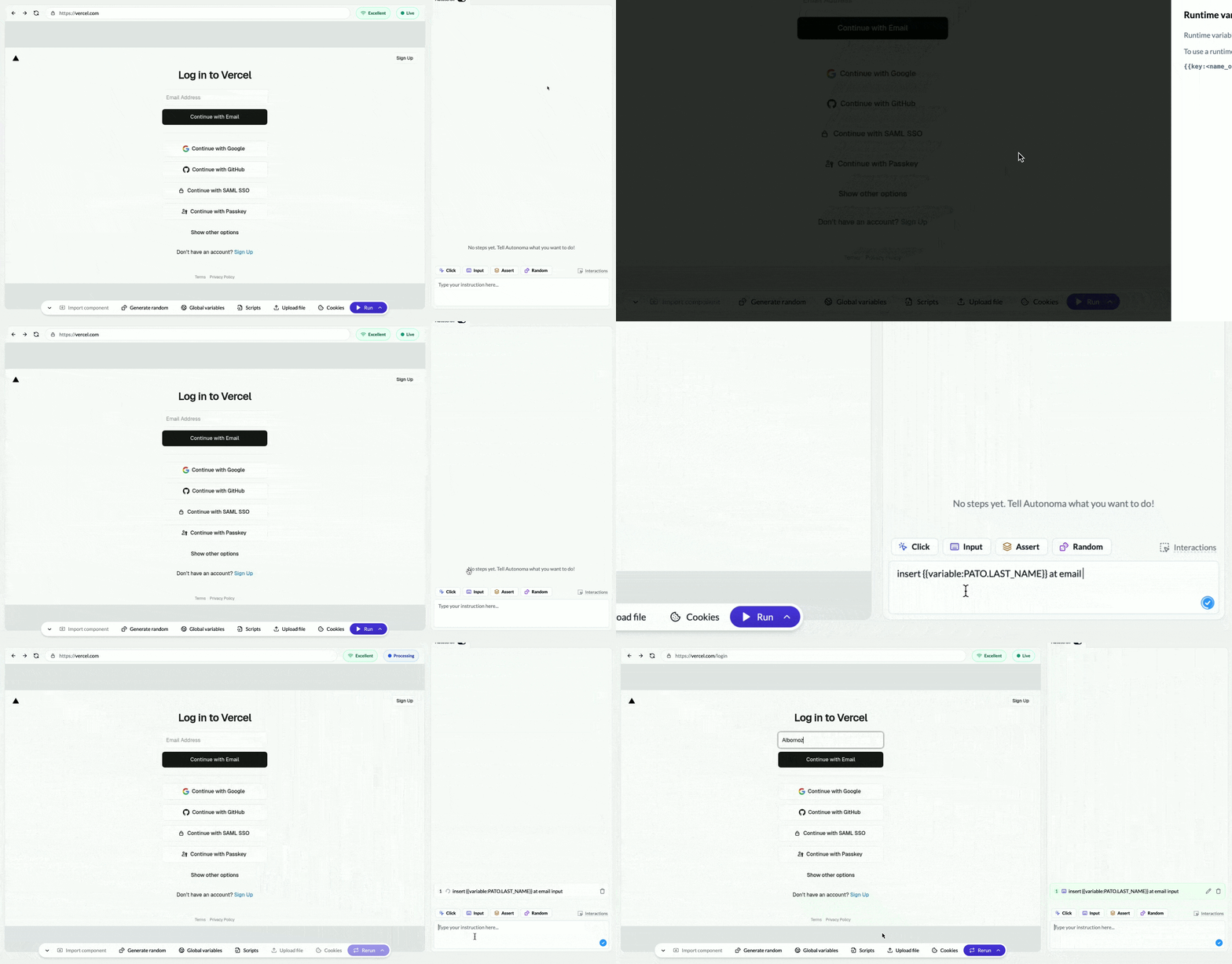
The Nightmare Scenario
Your company just changed the staging environment URL. It went fromhttps://staging.yourapp.com to https://staging-v2.yourapp.com.
You have 50 tests. Every single one starts with:
What Are Variables?
Variables are values you define once and reuse across all your tests. Instead of hardcodinghttps://staging.yourapp.com in 50 tests, you create a variable called APP_URL and set it to https://staging.yourapp.com. Then every test references {{variable:APP_URL}}.
When you need to change the URL, you update the variable once. All 50 tests automatically use the new value.
Think of variables like a company-wide contact list. Instead of everyone memorizing phone numbers, you maintain one list. When a number changes, you update the list once, and everyone gets the new number.
Your First Variable
Let’s create and use a variable in a test. Step 1: Define the variable In Autonoma, go to your project settings and create a new variable:- Name:
TEST_EMAIL - Value:
test.user@example.com
{{variable:TEST_EMAIL}} and {{variable:TEST_PASSWORD}}—these reference your variables. When the test runs, Autonoma replaces them with the actual values.
Step 3: The magic happens
Now imagine your test email needs to change. Maybe the old one is blocked, or you need a different domain.
Without variables: Open all 50 tests that use this email. Change it in each one. Save each one.
With variables: Change TEST_EMAIL once in project settings. Done. All 50 tests instantly use the new email.
Common Variables to Create
Here are the variables most teams set up first: Environment URLs:Real-World Example: Multi-Environment Testing
Let’s see how variables make multi-environment testing manageable. Your test:Variables vs Hardcoding
Let’s see the difference side by side. Hardcoded test (bad):- URL is hardcoded (breaks when URL changes)
- Email is hardcoded (might get reused, causing conflicts)
- Password is visible (security issue)
- Every test like this needs individual updates
- URL is centrally managed
- Email can be changed once for all tests
- Password is stored securely in project settings
- One change updates all tests
When to Use Variables
Use variables for any value that: Changes occasionally:- URLs (environments change)
- Credentials (passwords rotate)
- API keys (keys expire)
- Common email addresses
- Shared phone numbers
- Standard test data
- Environment-specific settings
- Feature flags
- Regional data (zip codes, phone formats)
- Passwords
- API tokens
- Private keys
Variables for Different User Roles
Many apps have different user types. Use variables to test each role: Customer role:Tips for Organizing Variables
Use clear naming conventions:Variables vs Keys vs Random Data
By now you’ve learned about three types of dynamic values in Autonoma. Here’s how they differ: Variables ({{variable:NAME}}):
- You set the value before tests run
- Changes manually when you update project settings
- Use for: Credentials, URLs, configuration
- Example:
{{variable:TEST_EMAIL}}= “test@example.com”
{{key:NAME}}):
- Your app generates the value during the test
- Extracted during test execution via extraction steps
- Use for: Order numbers, confirmation codes, IDs
- Example:
{{key:ORDER_ID}}= “#A7B3X9” (extracted from app)
{{random:type}}):
- Autonoma generates the value each test run
- Changes automatically every time
- Use for: Unique emails, names, data that can’t repeat
- Example:
{{random:email}}= “alice.jones.x7k9@example.com”
- Need same value in all tests? → Variable
- Need value your app creates? → Key (extraction)
- Need unique value each run? → Random data