

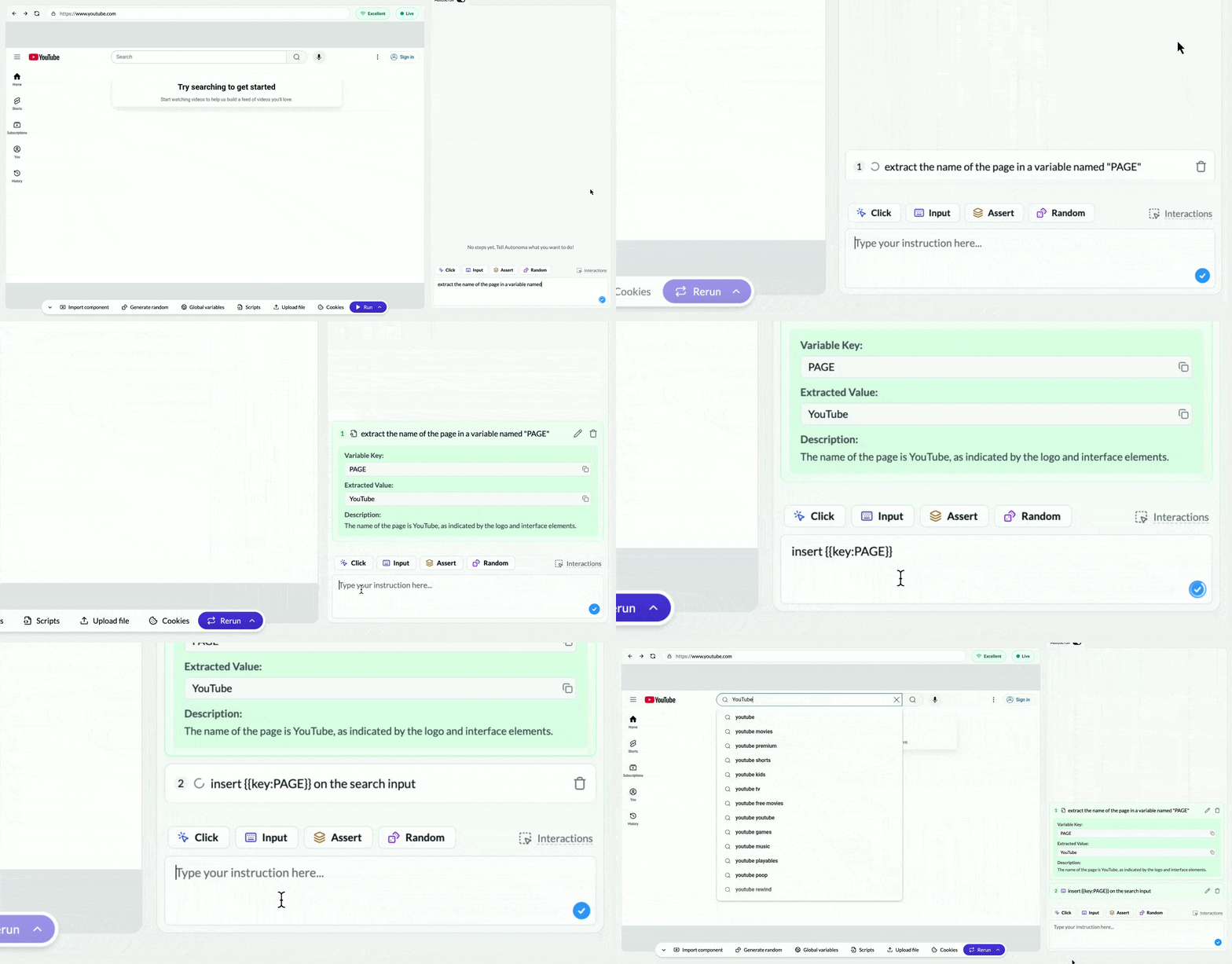
Using Autonoma's Creationg Showing Extract Memory Functionliaty

The Problem with Forgetful Tests

You’re testing your e-commerce checkout flow. The test works perfectly:
  1. Add product to cart
  2. Go to checkout
  3. Complete purchase
  4. See confirmation: “Order #A7B3X9 confirmed!”
Great. But then you realize: You need to verify that order appears in the order history page. You navigate to order history and… now what? How do you tell your test to look for order #A7B3X9 specifically? You can’t. Your test doesn’t remember the order number. It saw it on the confirmation page, but it’s already moved on. Tests, by default, have no memory. This is where most tests get stuck. You either:
  • Hardcode an order number (breaks when data changes)
  • Search for “any order” (doesn’t verify your specific transaction)
  • Give up and test manually
There’s a better way: Extraction. It lets your tests remember information from your application and reuse it later.

What Is Extraction?

Extraction is simple: Your test can capture information from your application and save it for later use. Think of it like taking a photo of something important so you can reference it later. Your test “sees” the order number on the confirmation page, captures it, and can use it in subsequent steps. The syntax:
"Extract information about <what you want> with key <name>"
For example:
"Extract information about the order number with key ORDER_ID"
Autonoma’s AI finds the order number on the page, captures it, and stores it under the name ORDER_ID. Now you can reference it anywhere in your test using {{key:ORDER_ID}}.

Your First Extraction

Let’s build that e-commerce test properly using extraction. Step 1: Complete the purchase flow
Test: "Purchase and verify order"

1. Navigate to {{variable:APP_URL}}/products
2. Wait until: Products load
3. Add prompt: "Click the first product"
4. Wait until: Product page loads
5. Click "Add to Cart" button
6. Wait until: Cart icon updates
7. Click cart icon
8. Click "Checkout" button
9. Wait until: Checkout form loads
10. Complete checkout form
11. Click "Complete Purchase"
12. Wait until: Confirmation page appears
Standard test so far. Now comes the extraction. Step 2: Extract the order number After the confirmation appears, add an extraction step:
13. Add prompt: "Extract information about the order number with key ORDER_ID"
Autonoma reads the confirmation page, finds the order number (however it’s displayed—“Order #12345”, “ID: 12345”, etc.), and saves it under the key ORDER_ID. Step 3: Use the extracted value Now navigate to order history and use the extracted value:
14. Click "View My Orders"
15. Wait until: Order history loads
16. Wait until: Order {{key:ORDER_ID}} appears in the list
Notice {{key:ORDER_ID}}—this references the value you extracted earlier. If the order number was #A7B3X9, Autonoma waits until it sees “#A7B3X9” (or “A7B3X9”, or however it’s displayed) in the order list. The complete test:
Test: "Purchase and verify order in history"

1. Navigate to {{variable:APP_URL}}/products
2. Wait until: Products load
3. Add prompt: "Click the first product"
4. Wait until: Product page loads
5. Click "Add to Cart" button
6. Wait until: Cart icon updates
7. Click cart icon
8. Click "Checkout" button
9. Wait until: Checkout form loads
10. Complete checkout form
11. Click "Complete Purchase"
12. Wait until: Confirmation page appears
13. Add prompt: "Extract information about the order number with key ORDER_ID"
14. Click "View My Orders"
15. Wait until: Order history loads
16. Wait until: Order {{key:ORDER_ID}} appears in the list
Now your test truly verifies the complete flow—from purchase to order history display.

When to Use Extraction

Use extraction whenever your application generates dynamic information that you need to verify later: Order numbers:
"Extract information about the order number with key ORDER_ID"
Confirmation codes:
"Extract information about the confirmation code with key CONFIRMATION_CODE"
Generated usernames:
"Extract information about the username with key USERNAME"
Invoice IDs:
"Extract information about the invoice ID with key INVOICE_ID"
Ticket numbers:
"Extract information about the support ticket number with key TICKET_ID"
The pattern is always the same: Describe what you want, give it a key name, reuse it with {{key:KEY_NAME}}.

Real-World Examples

Support ticket flow:
Test: "Submit and track support ticket"

1. Navigate to {{variable:APP_URL}}/support
2. Click "New Ticket"
3. Type "Cannot reset password" in subject field
4. Type "I forgot my password and the reset link doesn't work" in description
5. Click "Submit"
6. Wait until: "Ticket created" message appears
7. Add prompt: "Extract information about the ticket number with key TICKET_NUMBER"
8. Navigate to {{variable:APP_URL}}/support/my-tickets
9. Wait until: Ticket {{key:TICKET_NUMBER}} appears in list
10. Click on ticket {{key:TICKET_NUMBER}}
11. Wait until: Ticket details page shows "Cannot reset password"
Booking confirmation:
Test: "Book appointment and verify email"

1. Navigate to {{variable:APP_URL}}/book
2. Select date and time
3. Click "Confirm Booking"
4. Wait until: Confirmation page appears
5. Add prompt: "Extract information about the booking reference with key BOOKING_REF"
6. Add prompt: "Generate an email address for extracting information"
7. Add prompt: "Retrieve the booking confirmation email"
8. Wait until: Email contains booking reference {{key:BOOKING_REF}}
Referral code sharing:
Test: "Generate and use referral code"

1. Navigate to {{variable:APP_URL}}/referrals
2. Click "Generate My Code"
3. Wait until: Referral code appears
4. Add prompt: "Extract information about the referral code with key REFERRAL_CODE"
5. Log out
6. Navigate to {{variable:APP_URL}}/signup?ref={{key:REFERRAL_CODE}}
7. Complete registration
8. Wait until: "Referred by user123" message appears

Multiple Extractions in One Test

You can extract multiple values in a single test:
Test: "Complete purchase with shipping tracking"

1. Complete checkout flow
2. Add prompt: "Extract information about the order number with key ORDER_ID"
3. Add prompt: "Extract information about the estimated delivery date with key DELIVERY_DATE"
4. Add prompt: "Extract information about the total amount with key TOTAL_AMOUNT"
5. Navigate to order history
6. Wait until: Order {{key:ORDER_ID}} shows total {{key:TOTAL_AMOUNT}}
7. Wait until: Order {{key:ORDER_ID}} shows delivery date {{key:DELIVERY_DATE}}
Each extraction creates a separate key that you can reference independently.

Extraction vs Variables vs Random Data

At this point you might be thinking: “Wait, we already have variables and random data. How is this different?” Variables ({{variable:NAME}}): Values you set before the test runs
  • Example: {{variable:TEST_EMAIL}} might be “[email protected]
  • Use for: Configuration, credentials, static test data
Random data ({{random:type}}): Values Autonoma generates each run
  • Example: {{random:email}} generates “[email protected]
  • Use for: Unique data needed for testing (emails, names, etc.)
Keys ({{key:NAME}}): Values your application generates during the test
  • Example: {{key:ORDER_ID}} might be “#A7B3X9” (your app created this)
  • Use for: Application-generated values you need to verify later
Think of it this way:
  • Variables: You control the value
  • Random data: Autonoma controls the value
  • Keys: Your application controls the value (and extraction captures it)

Tips for Effective Extraction

Be specific about what to extract:
Good: "Extract information about the order number with key ORDER_ID"
Vague: "Extract information about the number with key NUM"
Use descriptive key names:
Good: ORDER_ID, CONFIRMATION_CODE, TRACKING_NUMBER
Bad: ID, CODE, NUM
Extract immediately when the value appears:
1. Click "Submit"
2. Wait until: Confirmation appears
3. Extract immediately ← Right after the value shows up
Use keys in wait conditions for robust tests:
Wait until: Order {{key:ORDER_ID}} appears
This is more reliable than generic waits.

What’s Next

You now understand how to give your tests memory—extracting application-generated values and reusing them throughout your test flow. This unlocks testing complex, multi-step workflows that were previously difficult to automate. Next, we’ll explore a capability that’s unique to mobile testing: how to test features that require camera input, like QR codes and photo scanning.
Ready for mobile testing capabilities? Continue to Mobile Testing Features →