

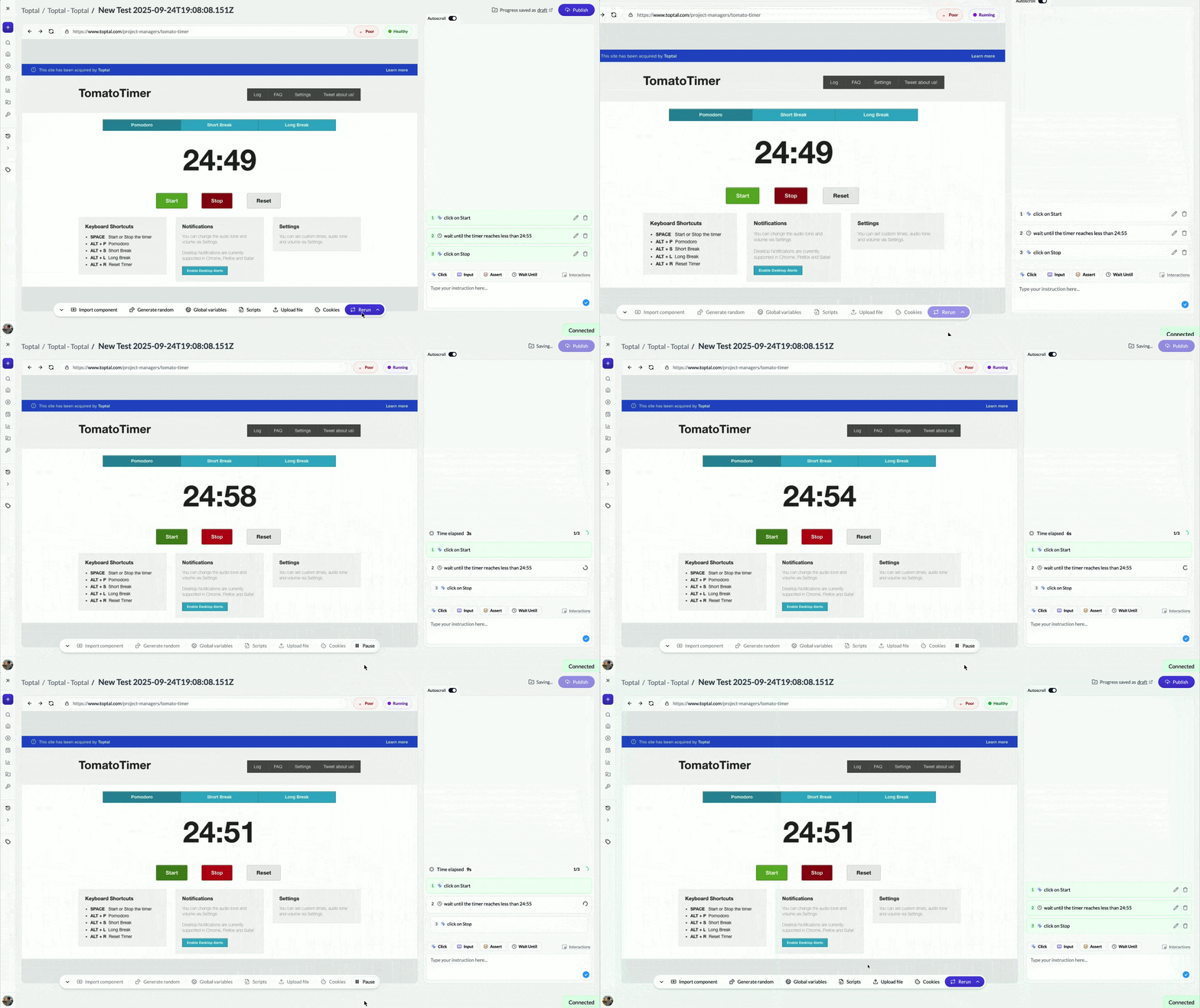
Using Autonoma's Creationg Showing Smart Wait Functionliaty

The Mysterious Failure

Your test worked yesterday. You didn’t change anything. Today it fails. You run it again. It passes. You run it a third time. It fails again. The test is flaky. Sometimes it works, sometimes it doesn’t. Same code, different results. You stare at the failure logs. The error says: “Element not found: Submit button.” But the button is right there on the page. You can see it in the screenshot. What’s happening? The answer: Your test ran too fast. It tried to click the “Submit” button before the button finished loading. On a fast network, it works. On a slow network, it fails. This is the #1 reason tests fail: Timing issues. Not broken code. Not wrong logic. Just timing.

The Speed Mismatch

Tests run at computer speed. Applications run at internet speed. Your test says:
1. Click "Submit"
2. Click "Confirm"
The test executes instantly—milliseconds between steps. Your application says: “Whoa, hold on. I need to:
  • Send the form data to the server (200ms)
  • Wait for server response (500ms)
  • Render the confirmation dialog (100ms)
  • Total: 800ms before ‘Confirm’ button exists”
Result: Test tries to click “Confirm” at 1ms. Button doesn’t exist until 800ms. Test fails.

The Real-World Example

Let’s see this in action with a checkout test:
Test: "Complete purchase" (without waits)

1. Navigate to {{variable:APP_URL}}/cart
2. Click "Checkout"
3. Type {{variable:TEST_EMAIL}} in email field ← Might fail here!
4. Type {{variable:TEST_ADDRESS}} in address field
5. Click "Complete Purchase"
6. Click "Confirm Order" ← Or here!
What happens: Step 2: Click “Checkout”
  • Browser navigates to checkout page
  • Server fetches checkout data
  • Page renders form fields
  • Takes 1 second
Step 3: Type in email field
  • Test tries immediately (0.1 seconds after step 2)
  • Email field doesn’t exist yet
  • Test fails
On a fast connection, the page might load in 200ms and the test passes. On a slow connection, it takes 2 seconds and the test fails. Same test. Different results.

The Solution: Waits

The fix is simple: Tell your test to wait for things to load.
Test: "Complete purchase" (with waits)

1. Navigate to {{variable:APP_URL}}/cart
2. Click "Checkout"
3. Wait until: Checkout form loads ← Wait for form!
4. Type {{variable:TEST_EMAIL}} in email field
5. Type {{variable:TEST_ADDRESS}} in address field
6. Click "Complete Purchase"
7. Wait until: Confirmation dialog appears ← Wait for dialog!
8. Click "Confirm Order"
Now the test waits for the form to load before typing. It waits for the confirmation dialog before clicking. No more timing issues.

How Autonoma Handles Waits

When you add Wait until: Checkout form loads, Autonoma doesn’t just pause for a fixed time. It actively checks:
  1. Is the checkout form visible?
  2. No? Check again (every 100ms)
  3. Still no? Check again
  4. Found it? Proceed to next step
  5. Timeout after reasonable navigation time? Fail the test
Autonoma waits for normal website navigation times with a timeout. If your page doesn’t load in a reasonable time, Autonoma treats it as an application error (which it is—your app is too slow or broken). This is smarter than fixed waits like “wait 3 seconds” because:
  • Fast loads: Test proceeds immediately after load (not waiting full 3 seconds)
  • Slow loads: Test waits up to the timeout (not failing prematurely)
  • Broken pages: Test fails with clear timeout error

The Overuse Philosophy

Here’s the key principle: It’s better to have too many waits than too few. Too few waits:
  • Tests are fast but flaky
  • Fail randomly based on network speed
  • Unreliable in CI/CD
  • Team loses trust in tests
Too many waits:
  • Tests are slightly slower but reliable
  • Always pass when app works correctly
  • Trustworthy in CI/CD
  • Team depends on tests
The choice is obvious. Slight slowness beats complete flakiness.

Where to Add Waits

Add waits after any action that triggers loading or changes: After navigation:
1. Navigate to {{variable:APP_URL}}/products
2. Wait until: Products load ← Always wait after navigation
After clicking buttons that load new content:
1. Click "Load More"
2. Wait until: Additional products appear ← Wait for new content
After form submission:
1. Click "Submit"
2. Wait until: Success message appears ← Wait for confirmation
After interactions that trigger API calls:
1. Type "laptop" in search field
2. Wait until: Search suggestions appear ← Wait for API response
After any dynamic update:
1. Click "Add to Cart"
2. Wait until: Cart badge updates ← Wait for count change

Real-World Test with Proper Waits

Let’s build a complete test with waits in all the right places:
Test: "Search, filter, and purchase"

Navigation:
1. Navigate to {{variable:APP_URL}}/products
2. Wait until: Product grid loads ← Wait after navigation

Search:
3. Type "laptop" in search field
4. Wait until: Search results load ← Wait for search results

Filter:
5. Click "Price: $500-$1000" filter
6. Wait until: Filtered results load ← Wait for filter

Selection:
7. Add prompt: "Click the first product"
8. Wait until: Product page loads ← Wait for new page

Add to Cart:
9. Click "Add to Cart"
10. Wait until: Cart icon updates ← Wait for cart update

Checkout:
11. Click cart icon
12. Wait until: Cart page loads ← Wait for cart page
13. Click "Checkout"
14. Wait until: Checkout form loads ← Wait for checkout

Complete Purchase:
15. Type {{variable:TEST_EMAIL}} in email field
16. Type {{variable:TEST_ADDRESS}} in address field
17. Click "Complete Purchase"
18. Wait until: Processing message appears ← Wait for processing
19. Wait until: Confirmation page loads ← Wait for final confirmation
Notice the pattern: After every significant action, wait for the result.

The Two Types of Waits

Autonoma offers two wait types: 1. Conditional waits (preferred):
Wait until: <condition>
Examples:
  • “Wait until: Products load”
  • “Wait until: Submit button appears”
  • “Wait until: Success message displays”
Autonoma checks the condition repeatedly and proceeds when true. 2. Fixed time waits (use sparingly):
Wait <seconds>
Examples:
  • “Wait 2 seconds”
  • “Wait 5 seconds”
Autonoma pauses for exactly that duration. Use conditional waits 95% of the time. Only use fixed time waits when:
  • You’re waiting for animations (not dependent on loading)
  • You’re debugging timing issues
  • There’s no clear condition to check
We’ll explore these wait types in depth in the next guide.

Common Timing Mistakes

Mistake 1: No wait after navigation
1. Navigate to /products
2. Type "laptop" in search ← Fails! Search field not loaded yet
Fix: Add wait
1. Navigate to /products
2. Wait until: Page loads
3. Type "laptop" in search ← Now it works
Mistake 2: No wait after button click
1. Click "Load More"
2. Add prompt: "Click the 20th product" ← Fails! 20th product not loaded yet
Fix: Add wait
1. Click "Load More"
2. Wait until: Additional products load
3. Add prompt: "Click the 20th product" ← Now it works
Mistake 3: No wait after form submission
1. Click "Submit"
2. Verify "Success" message ← Fails! Message not displayed yet
Fix: Add wait
1. Click "Submit"
2. Wait until: "Success" message appears
3. Verify message is correct ← Now it works

The Flaky Test Detector

If your test:
  • Passes sometimes, fails sometimes
  • Fails with “element not found” errors
  • Works on your machine, fails in CI/CD
  • Fails more often on slower networks
You have a timing issue. Add more waits.

What’s Next

You now understand why tests fail—timing mismatches between fast test execution and slower application loading. The solution is simple: Add waits after every significant action. In the next guide, we’ll dive deeper into the two types of waits and learn exactly when to use each.