
Set up a preview with a coding agent (MCP)
Setting an app up is one of the two jobs the Autonoma MCP does: connect your coding agent and it sets your previews up for you - works out how your app should get them, does the setup either way, asks you for any secrets it needs, and iterates until previews are landing - while you watch, read-only, in the Autonoma UI.

This is the default way to set Autonoma up, and the alternative to answering a questionnaire about your stack and then filling in a config form. Your agent already knows your repo - its build, its services, its env, how it deploys - so it can do the setup faster than you can describe it, and answer questions about your own schema that you would otherwise be guessing at. You stay in control: the UI shows every step live and hands control back the moment you take over.
The agent picks the path too
An app gets its previews one of two ways, and they need completely different work:
- Autonoma-hosted - Autonoma builds and hosts a preview per pull request. The agent writes the build, services and env config, and deploys through these tools.
- Your own pipeline - your project already builds previews. Autonoma deploys nothing; the agent connects those previews so Autonoma knows when one is live.
On your own pipeline there are two ways Autonoma learns a preview is live, and the agent is told which applies rather than assuming. If your project is on Vercel, Autonoma’s Marketplace integration already reports every deployment, so the agent connects the project instead of writing anything - and connecting is also what makes a deployment-protected preview reachable at all. Every other host is a signed webhook the agent wires into your pipeline.
Being on Vercel does not commit you to reusing your own previews. Plenty of Vercel projects pick Autonoma-hosted previews deliberately, because an Autonoma-hosted preview gets its own database and a test run cannot leave rows in whatever your Vercel previews point at. If the agent picks Autonoma-hosted for a Vercel project, the Vercel tools stand down and it follows the hosted playbook.
Autonoma-hosted is the default, and the agent picks it on its own. Reusing your own previews is always your decision - the agent cannot choose it for you, and the server refuses it without your answer. What changes is whether the agent raises the option.
If your project is on Vercel, our integration makes it a genuine choice, so the agent will ask. It fits when your previews are entirely Vercel’s: the backend in the same deployable unit, and either data cleanly scoped to a tenant that can be deleted whole or a branchable database (Neon, Supabase, PlanetScale) giving each preview its own. A backend deployed elsewhere, or global tables a teardown would leak into, means Autonoma-hosted - which plenty of Vercel projects choose deliberately.
Anywhere else the agent will not bring it up, and will set up Autonoma-hosted previews. You can still ask for your own - it will explain both sides first. That is the same routing the questionnaire applies when you set up by hand. A deploy workflow in your repo is not evidence either way: a YAML file does not say whether those previews work, which database they point at, or whether you want test data written into it.
The two mistakes are not symmetrical: a needless Autonoma-hosted preview costs an environment we build for you anyway, while wrongly reusing your own previews writes test data into a real shared database. The trade-off is spelled out here.
Start from the Autonoma UI
You do not install or configure anything for this. Autonoma’s connect screen hands you one command - the planner CLI, carrying your app’s id - and that command does the wiring:
AUTONOMA_SHARED_SECRET=<shared-secret> AUTONOMA_DISTINCT_ID=<distinct-id> AUTONOMA_API_TOKEN=<api-token> AUTONOMA_GENERATION_ID=<generation-id> AUTONOMA_APPLICATION_ID=<application-id> npx @autonoma-ai/planner@latestThe values above are stand-ins - the command with yours filled in is on the connect screen at autonoma.app, and the planner refuses to start on a placeholder token.
Copy it, open a terminal in your project folder, and paste. From there it registers this MCP server with your coding agent, authorizes it, mints a pairing code, and starts a fresh agent session on the job - then keeps going once the preview is up, through your test suite, the SDK integration and a scenario dry run. There is no second command and no pairing code for you to read off a screen.
Registering the server before starting the agent is the whole reason this is a command rather than something you paste into a session you already have open: an agent loads its MCP servers at startup, so it can never pick up one it registered itself. A CLI process is not an agent session, so it can do both in order.
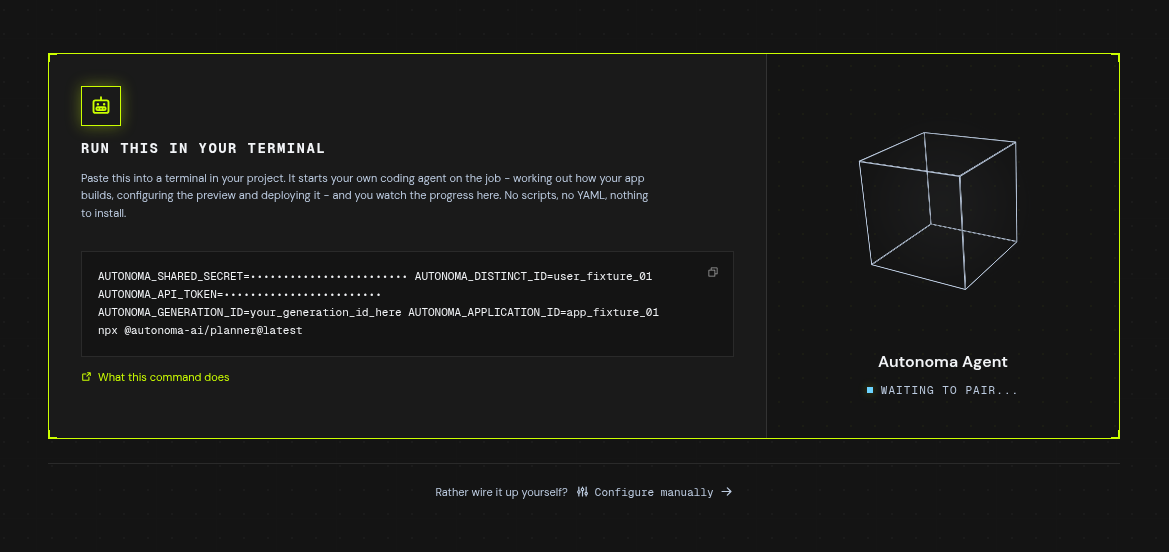
That one screen is the fork: the command is the default, and the questionnaire is the Answer a few questions instead link along the bottom.
The app id in the command is how the agent knows which app to set up. You never hand it a repo name, and it can only ever touch an app in an organization you belong to.
Hosted and headless agents
The OAuth sign-in needs a browser on the same machine. If you are a hosted agent, an autonomous engineer, or a CI job, run the same command with --non-interactive:
AUTONOMA_API_TOKEN=<api-token> AUTONOMA_GENERATION_ID=<generation-id> AUTONOMA_APPLICATION_ID=<application-id> \ npx @autonoma-ai/planner@latest --non-interactive \ --coding-agent claude --frontend apps/web --backend apps/apiIt never opens a browser - the coding agent it starts is authorized with the run’s API key as a bearer header instead - never blocks on a question, and reports each step as it starts and finishes so the process that launched it can follow along. Anything that would have been asked has to arrive as a flag; where guessing wrong would spend the run on the wrong thing it refuses with a clear error instead, and where the choice is cheap - which of two installed coding agents to use - it picks one and says which. See running unattended for the full flag list.
This is the whole of the headless path. It replaces registering the MCP by hand and pairing yourself, and it does more than that ever did - the same one invocation carries on through the test suite, the SDK integration and the dry run.
Wiring it up by hand instead
If you manage your own MCP servers and would rather drive the tools directly, that still works. Register the server with the connection details and an API key, then ask the user for a pairing code from the Autonoma UI:
- Call
pair(code)- returns theapplicationId, the linked repository, the preview path playbook, and the current config. - Follow the loop -
select_preview_path→get_config/apply_config→trigger_deploy→get_session_status(poll until ready) → verify the app works →go_live→validate_sdk→ fix recipes withdry_run_scenario/update_recipe. - If
request_envfires - tell the user which env vars Autonoma needs and why. The user enters values in the Autonoma UI; you pollget_session_statusuntil they land. You never see the values.
Pairing codes are single-use and expire after 15 minutes, so ask for the code that is on the user’s screen now rather than reusing one from earlier in the conversation.
The agent will also stop and wait for you again if the app needs secret values it does not have - request_env asks for key names only, you type the values into the Autonoma UI, and the agent polls get_session_status until they land. Secret values never pass through a tool call.
How the agent sets Autonoma up
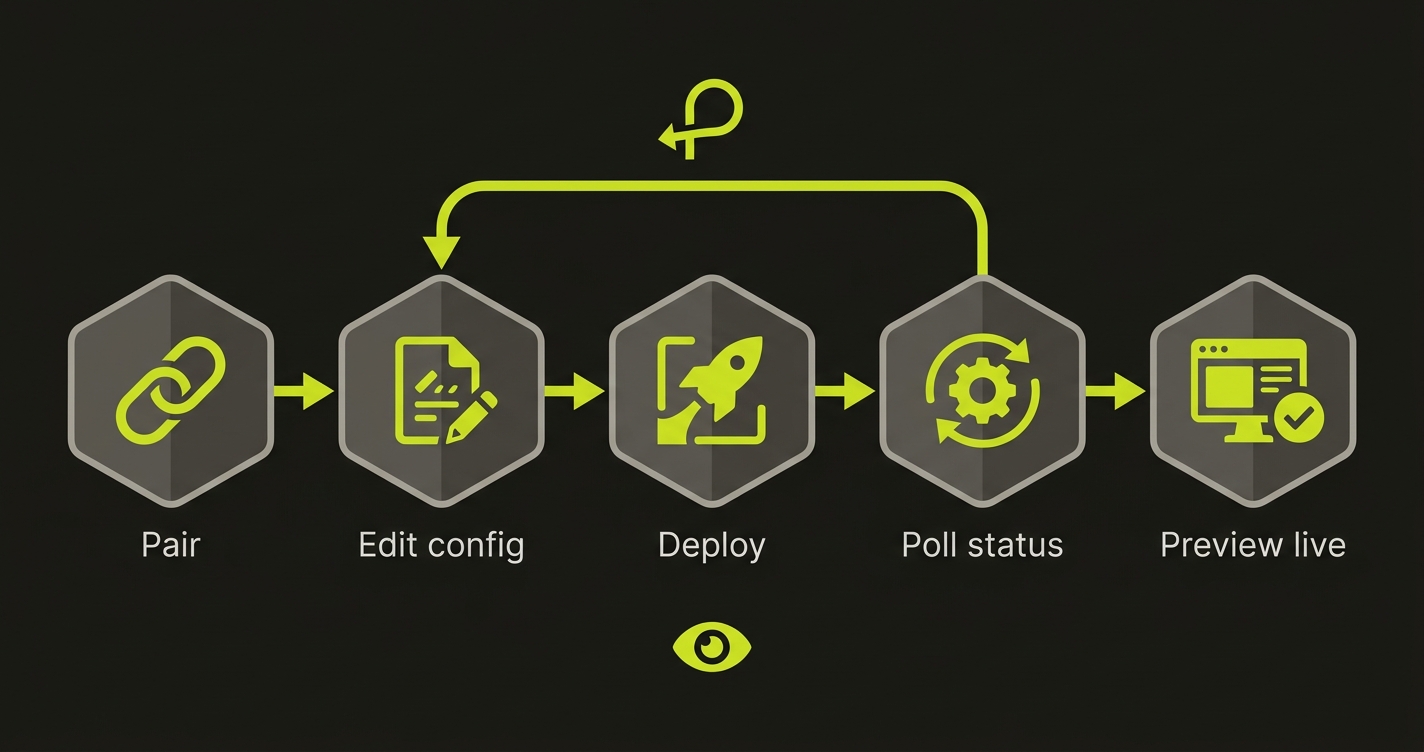
Once paired, the agent works a loop, and the Autonoma UI streams every step:
- Pair -
pair(code)claims your app for the agent and returns which repo it is linked to, how it gets its previews, and the playbook for that path. Your agent is told to pair first, before it analyzes your repo: pairing is low-risk (it makes no code changes and deploys nothing) and it is what flips the UI into “connected” and starts streaming activity, so you get immediate feedback instead of staring at an idle screen while the agent reads code. - Check the repo, then pick the path -
pairreturns the repository the app is linked to, and the agent is told to confirm its working directory matches before it reads a single file. An agent run from the wrong checkout would otherwise analyze an unrelated codebase and act on evidence that has nothing to do with your app. If the app has not chosen yet, the agent callsselect_preview_pathwithautonoma-hosted- the default - and a one-line reason you can see. Reusing your own previews takes an explicit ask from you.
Everything after that depends on the path.
If Autonoma hosts the preview
-
Read and edit -
get_config/apply_configread and save the full preview environment config document. A save is validated; an invalid document returns the errors to fix.apply_configalso takes an optionalbranchto set which branch the base preview deploys from (setting it here does not deploy).The agent does this work on an
autonoma-integrationbranch cut from your default branch, not on the default branch itself. Getting a preview to build usually takes real commits - a Dockerfile that was never built from a repo root, a missing build arg - and none of that belongs on your trunk unproven. It pushes that branch, points the base preview at it, and iterates there; the work reaches your default branch the way anything else does, as a pull request you review. Pointing the base preview at a branch does not change which branch Autonoma treats as your main one.Your app has one preview config, and every environment deploys from it - the base environment and each open pull request alike. Saving one is a change to the whole app, not to the pull request you happen to be looking at. Per-environment configuration is a known limitation we may lift later; today there is no way to give one pull request a different config, and
prNumberon the config tools chooses only which environment gets redeployed with the saved document. Secret values work the same way:set_secretstores them per app and service, not per pull request. -
Deploy -
trigger_deploydeploys the configured deploy branch as the preview.Deploys do not queue: asking for a second one cancels the first. A first build takes minutes - impact analysis, then a build machine, then your images - and the honest reaction to that is to keep waiting, so
trigger_deploydeclines while a deploy is already running and hands back that deploy’s live status instead of restarting the clock. The agent can still supersede deliberately withforce, which is the right call once it has pushed a fix the running build predates. Your own Redeploy button in the UI always supersedes: you are looking at the deploy in flight when you press it. -
Watch and iterate -
wait_for_deployblocks until the deploy settles, andget_session_statusreturns the deploy status, the preview URL, diagnostics, and arecentLogstail (build logs on failure, app logs when ready). The agent waits, reads the diagnostics and logs if the preview fails, fixes the config, and deploys again - until it comes up. -
Verify beyond readiness - a ready preview can still be broken. Readiness is a TCP check on the app’s port, so it means the process is accepting connections, not that it serves anything correctly. (An app that declares no port - a worker, poller, or queue consumer that only makes outbound calls - is ready once its container is running, since there is no socket to check. Omit
porton those: an app that declares a port it never binds can never pass the check, and previews are all-or-nothing, so it fails the whole environment.) The agent is instructed to exercise the main flow against the preview URL and then read the app’s runtime logs inrecentLogs- not just declare done because the status says ready.
If your own pipeline builds it, on Vercel
There is nothing to write here. Autonoma’s Vercel Marketplace integration reports every deployment already, so the work is connecting the project.
Being on Vercel is not itself a reason to take this path. It is still your own pipeline, so where the test data lands is the question that decides it - and a Vercel preview points at your project’s own database by default, commonly the same one production uses, unless you have wired per-preview database branching. The agent is told to check that your schema is tenant-scoped before continuing here, and to go back and pick Autonoma-hosted if it is not.
-
Read the connection state -
get_vercel_setupreturns whether your organization has the Autonoma Vercel integration installed, which projects can be linked, which one is linked already, and that project’s ready deployments. It also returns anextStepnaming the exact call to make, so the agent does not have to infer the sequence. -
Link the project -
link_vercel_projectconnects the Vercel project to the app. The agent picks the candidate whosematchesRepositoryis true - the project building the same GitHub repo - and asks you if none matches, rather than guessing from a name. Linking is the step everything else depends on: it applies the deployment-protection bypass, without which Autonoma cannot reach a protected preview, and adopts theAUTONOMA_SHARED_SECRETVercel injected into your project so your SDK handler’s signature matches. -
Get a deployment to point at - the agent is told to make one rather than reuse an old one. The next thing it does is add your Autonoma SDK handler on its own branch, and Vercel builds a preview for every branch pushed, so it pushes that branch and uses its preview. That deployment is the only one that actually contains the handler, so onboarding never has to be re-pointed later, and a fresh build already carries the injected
AUTONOMA_SHARED_SECRET, so nothing needs rebuilding.To reuse an existing deployment instead, the agent asks you which - the same question this screen’s dropdown asks, over the same list - and then
create_vercel_deploymentrebuilds your choice so it picks up the shared secret. It will not take a production deployment on its own initiative. -
Wait, then commit it -
get_vercel_deployment_statuspolls until ready, telling a still-building deployment apart from a terminalERRORorCANCELEDso a failed build ends the wait instead of extending it.select_vercel_deploymentthen makes it the preview Autonoma tests against, which advances onboarding on its own - there is no signal to wait for and no confirm step.
If your organization has not installed the integration at all, the agent cannot do it for you: it hands you the install link from get_vercel_setup and polls until you have.
If your own pipeline builds it, anywhere else
There is no config to write, nothing to deploy and no build logs to read - apply_config, trigger_deploy, request_env and get_target_logs all refuse on this path rather than doing something surprising. The work is wiring one signed call:
- Read the contract -
get_signal_setupreturns the endpoint, yourapplicationId, the shared secret, every body field, and a starter GitHub Actions workflow. The agent is told to treat that workflow as a template: it hangs off GitHub’sdeployment_status, which many pipelines never emit, so the agent reads how your project actually deploys and makes the same call from whatever step knows a preview is live. - Wire it in - conventionally on a branch and a pull request, so you review it rather than the agent pushing to main. It puts the shared secret in your pipeline’s secret store rather than committing it.
- Prove it fired -
get_signal_statusis the only confirmation the wiring works, so the agent triggers a real deploy and polls. It is told a hand-writtencurlproves nothing about your pipeline. It also watchesprReviewsConfirmed: until a signal carries aprNumber, your app records preview URLs but no pull request is ever reviewed. - Confirm -
confirm_signal_setupadvances onboarding, once a signal has actually landed.
Then, whichever path you took
-
Take the app live -
go_livetakes the app from a verified preview to reviewing, in one transition. Until it runs, Autonoma reviews no pull requests and holds back the comments it would have posted (they are re-run for your open pull requests when you finish, so nothing is lost). It does not wait on the SDK endpoint or the recipes below - those are separate work that continues afterwards. Called too early it refuses and names the step your app is actually on and the call that moves it forward, so you can see where it stalled rather than reading a state-machine error. On your own pipeline it goes live on trust: Autonoma cannot prove your signal carries aprNumberuntil a real pull request deploys, so open one afterwards and checkget_signal_statusreportsprReviewsConfirmed. -
Validate your SDK endpoint - once the preview is up, Autonoma needs the environment factory you implement. It is conventionally mounted at
/api/autonoma, and any other route works as long as the agent records it:sdk_pathon the app that serves the handler names the mount path, and an app that declares none is assumed to use the convention. The agent sets it withapply_configbefore validating, andvalidate_sdkwrites back whatever path actually answered - so a handler on a different route is a one-line config change, not a reason to move your code. You will usually write it on its own pull request (conventionally titledfeat: autonoma-sdk), and each pull request gets its own preview.list_dry_run_targetslists them - your main preview plus every open PR - and flags the one Autonoma detected as the SDK pull request.validate_sdkthen points at that target, calls your handler’sdiscover, and stores the schema it returns - on an Autonoma-hosted preview and on a Vercel deployment alike. (The one target it cannot validate is a preview from your own non-Vercel pipeline: that needs the signing secret your pipeline signs with, and no tool here accepts a secret value, so the agent hands that step back to you in the UI.) If it fails, the error is your handler’s own, andget_target_logsreads that specific preview’s build or runtime logs for the stack trace behind it. (get_session_statusonly ever reports your main preview, so it will not show you a pull request’s preview.) -
Fix the test-data recipes - a scenario is a named app state a test depends on (e.g. “logged-in admin with one open invoice”), and its recipe is the JSON your deployed Autonoma SDK follows to create those entities in the app’s own database. Before onboarding finishes a recipe often does not work yet. The agent lists scenarios with
list_scenarios, reads one withget_recipe, and tests an edit end-to-end withdry_run_scenario(which calls your SDKupto create the entities, thendownto remove them). Passing the editedrecipetodry_run_scenarioruns it without storing it, so the agent can loop on the real SDK error without ever leaving a half-finished recipe in place; it promotes the one that passes withsave: true, or saves directly withupdate_recipe.There are two different things that can be wrong, and they iterate differently. A recipe JSON problem (a wrong field, an unresolved
{{variable}}) is stored on Autonoma, soupdate_recipe->dry_run_scenariotakes effect immediately with no redeploy. A problem in your SDK handler code (the factory that turns the recipe into database rows) lives in your repo and only changes when the app is rebuilt: push the fix to the deploy branch (get_config/pairreturn which branch that is), redeploy -trigger_deployfor a PreviewKit preview, or wait for your own deployment to finish - and only then dry-run again, so you are not testing stale code. If that fix is already deployed to its own PR preview,list_dry_run_targetsplusdry_run_scenario’stargetpoints the run straight at it instead, with no redeploy of the app’s own preview. Fastest of all is to iterate the SDK handler against a local server and database first and confirm the rows land, then push a recipe you already know works.Previews scale to zero when idle, so the first
dry_run_scenarioagainst a cold environment can return a 503 while it wakes.dry_run_scenariowaits through that warm-up automatically (a bounded retry), so the first run may just take a little longer - a slow first attempt is the environment starting, not a broken recipe.
While the agent holds the config, the Autonoma UI is read-only and shows what it is doing in real time. You can press Take over at any point to reclaim the config and continue by hand; the agent stands down immediately. If the agent goes idle, control returns to you automatically.
The same split carries through the rest of setup. Once the preview is up the work moves into your terminal - the test suite, the SDK integration and the scenario dry run all happen there - so Autonoma stops offering you those steps and says so, with a live tally of what the platform has confirmed for itself: artifacts that landed, an SDK endpoint that answered, scenarios that provisioned. Take over there hands you the manual steps instead. Your run keeps going in the terminal either way, so stop it there too if you meant to take the work back.
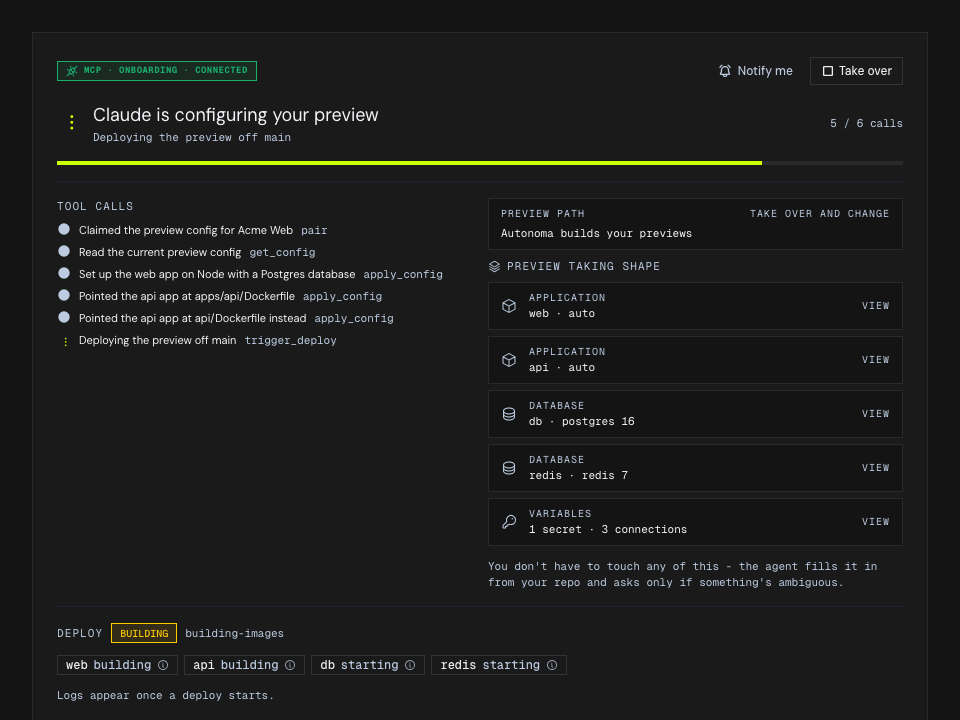
The tool-call list is an audit log: every tool in the table below shows up here as the agent uses it, so you can see exactly what it changed.
The server’s connect-time instructions already tell your agent what Autonoma is and the order to use these tools, so even an agent that has never seen Autonoma knows where to start. Any client can also reach that guidance without a setup file: invoke the configure_preview prompt (a guided flow that pairs with your code and runs the loop), or the connect_my_deploys prompt (the same flow scoped to the your-own-pipeline path - wiring the signed signal and proving it lands), or read the onboarding guide resource (autonoma://onboarding-guide) on demand - useful when a long session has pushed the connect-time instructions out of the agent’s context. Each path also has its own readable playbook resource - autonoma://autonoma-hosted-playbook, autonoma://own-pipeline-playbook, and autonoma://vercel-playbook - so an agent that paired into one path can re-read just that one without hunting through chat history.
Secrets stay yours
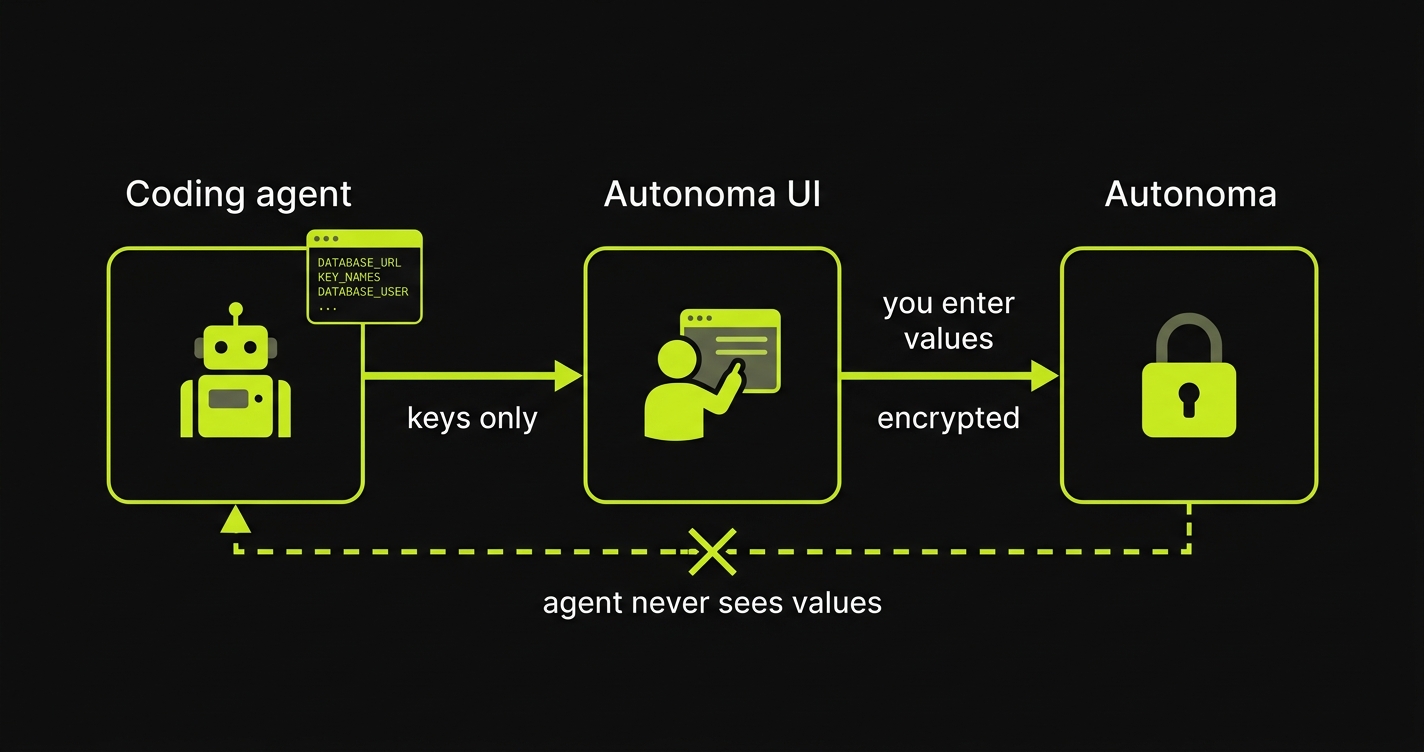
When your app needs a secret value the agent does not have - an API key, a database URL, a token - it calls request_env with only the key names. That surfaces a prompt in the Autonoma UI where you enter the values. The values go straight from your browser to Autonoma, encrypted; the agent never sees them and there is no tool that accepts a secret value.
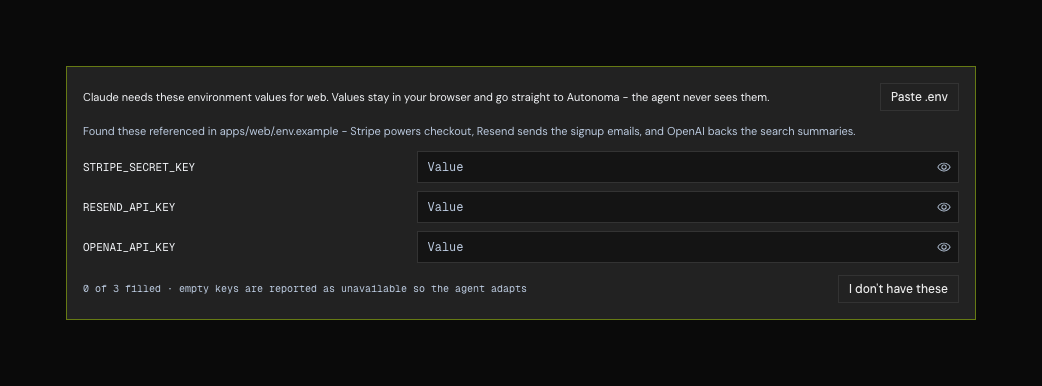
The agent tells you why it needs each key, and you can skip any of them - an empty key is reported back as unavailable so the agent adapts rather than stalling.
The agent should always ask you first whether to set env from your .env (you paste it into the UI) or to configure it yourself - so you decide, every time, what Autonoma stores.
Take as long as you need. While a request is pending the agent keeps polling get_session_status, so it picks the values up on its own once you submit them - you do not have to go back to the agent and tell it you are done (though you can, and it will check).
What your agent can do
Some tools apply to only one path; called on the other they return an error naming the tool to use instead, rather than failing quietly.
| Tool | Input | Does |
|---|---|---|
pair | code | Claims the app using the pairing code from the UI; returns its applicationId, the repository it is linked to, how it gets its previews, the playbook for that path, and (Autonoma-hosted) the current config and deployBranch |
get_github_connection | applicationId | Which repository this app is connected to, and which others are linkable. Safe at any point - if your pairing code came from the UI the repository is already connected, and this confirms which one. If the GitHub App is not installed it returns a link to hand to a human and the tool to poll, since GitHub has no API to install an app |
link_repository | applicationId, repoFullName | Connects an app that has no repository yet, and completes the GitHub step. For apps being set up entirely through this MCP; if the app already has a repository it refuses rather than repointing it, which is a UI action |
select_preview_path | applicationId, path, reason, userRequest? | Commits how the app gets its previews, when pairing reported none chosen yet. autonoma-hosted is the default; their-pipeline is refused until userRequest carries your own words choosing it. reason is one line, shown to you live |
get_config | applicationId | Reads the current preview environment config document and the current deployBranch |
apply_config | applicationId or repoFullName, document, branch?, prNumber?, apply?, description? | Saves the app’s full config document (validated; errors returned to fix). Never carries secret values. Optional branch sets the base preview’s deploy branch - during onboarding the pushed autonoma-integration branch, not your default; does not deploy. There is one config per app, shared by every environment - prNumber only picks which environment is redeployed with it, unless apply is false |
rename_app | applicationId or repoFullName, from, to | Renames an app, keeping its stored secrets and build history. Use instead of renaming in apply_config: a document shows only the after-state, so a renamed app reads as a new one and the old app is deleted along with everything attached to it. Re-read get_config afterwards - the document you were holding still names the old app |
request_env | applicationId, keys, appName | Asks you to enter secret values in the UI (keys only - the agent never sees the values) |
trigger_deploy | applicationId, force? | Deploys the configured deploy branch (your default branch unless pointed at an integration branch) as the preview. Declines while a deploy is already running - a second one would cancel it, not queue behind it - and returns that deploy’s status instead; force supersedes it deliberately |
get_session_status | applicationId | The single polling tool: control state, any pending request, deploy status, preview URL, diagnostics, and a recentLogs tail - build logs while building, the app’s runtime logs once ready, both on failure |
get_vercel_setup | applicationId | Vercel: the state of the connection - whether your organization has the integration installed, which projects can be linked (with matchesRepository flagging the one building this repo), which is linked, its ready deployments, and a nextStep naming the call to make |
link_vercel_project | applicationId, vercelProjectId | Vercel: links the project to this app. Applies the deployment-protection bypass and adopts the AUTONOMA_SHARED_SECRET Vercel injected into your project. Reversible - you can unlink in the UI |
create_vercel_deployment | applicationId, vercelDeploymentId | Vercel: deploys your project, rebuilding an existing deployment so it picks up the injected shared secret - a real build on your Vercel account. Only needed when reusing an old deployment; a freshly pushed branch already carries the secret. Returns a new deployment id to poll and select, not the one passed in. The agent asks you which deployment to reuse, and never takes production unprompted |
get_vercel_deployment_status | applicationId, vercelDeploymentId | Vercel: build state of one deployment, for waiting out that build. Distinguishes still-building from a terminal ERROR / CANCELED, so a failed build ends the poll loop |
select_vercel_deployment | applicationId, vercelDeploymentId | Vercel: commits a ready deployment as the preview Autonoma tests against, advancing onboarding. A still-building deployment is rejected |
get_signal_setup | applicationId | Your own pipeline, off Vercel: the deployment-signal contract - endpoint, applicationId, shared secret, every body field, and a starter workflow to adapt. Refuses when a Vercel project is linked, since the integration already reports deployments |
get_signal_status | applicationId | Your own pipeline: whether a signed signal has landed, the URL it carried, and whether one has ever carried a prNumber (prReviewsConfirmed) - which is what per-PR reviews need |
confirm_signal_setup | applicationId | Your own pipeline: marks the wiring done so onboarding advances, once a signal has actually landed |
go_live | applicationId, description? | Takes a verified preview all the way to live, in one call - the last two onboarding steps, and what turns pull-request reviews on. Too early it refuses and names the step your app is on plus the call that moves it forward; already live it says so and changes nothing |
list_scenarios | applicationId | Lists the app’s scenarios (named test-data states) and whether each already has a recipe |
get_recipe | applicationId, scenarioId | Reads a scenario’s current recipe - the JSON create graph and variables your SDK uses to build its entities |
update_recipe | applicationId, scenarioId, recipe, baseFingerprint? | Saves a corrected recipe as the scenario’s active version (the recipe name must stay the scenario’s name). Pass the fingerprint from get_recipe so a write that races another editor is rejected instead of overwriting it |
dry_run_scenario | applicationId, scenarioId, recipe?, save?, target? | Runs a recipe against the deployed app (SDK up then down); on failure returns which phase failed and the SDK error. Pass a recipe to try an edit without storing it and save: true to promote one that passes; pass a target to run against a specific preview |
list_dry_run_targets | applicationId | The previews a dry run can be pointed at - open PR previews and main, with which one Autonoma detected as the SDK implementation PR, and whether each is deployed yet |
validate_sdk | applicationId, target, allowSelfHeal? | Provisions the target preview’s Autonoma secrets and calls your SDK handler’s discover, storing the schema on success. A redeploy_started result means the preview is rebuilding to pick up those secrets - poll list_dry_run_targets until it is ready, then call again (with allowSelfHeal: false after a signature rejection, so one that survives the redeploy is reported rather than redeployed through again) |
get_target_logs | applicationId, target, source, app?, limit?, filter?, from? | Build or runtime logs for one preview named by a list_dry_run_targets id - the way to see a pull request’s preview, which get_session_status never reports |
Troubleshooting
The tools do not show up. Confirm the client connected (e.g. claude mcp list) and that you completed the browser sign-in.
The pairing code does not work. Codes are single-use and short-lived. Reopen Configure with coding agent in the UI to mint a fresh one.
The UI went read-only and I want to edit by hand. Press Take over - the agent stands down and the form becomes editable again.