
Databases
A database is a first-class part of every preview: pick the engines your app needs, and Autonoma runs the schema, seed, and migration steps that bring each one to life, from one of your own apps' images - so the files and tooling those steps depend on are the ones your app already has.
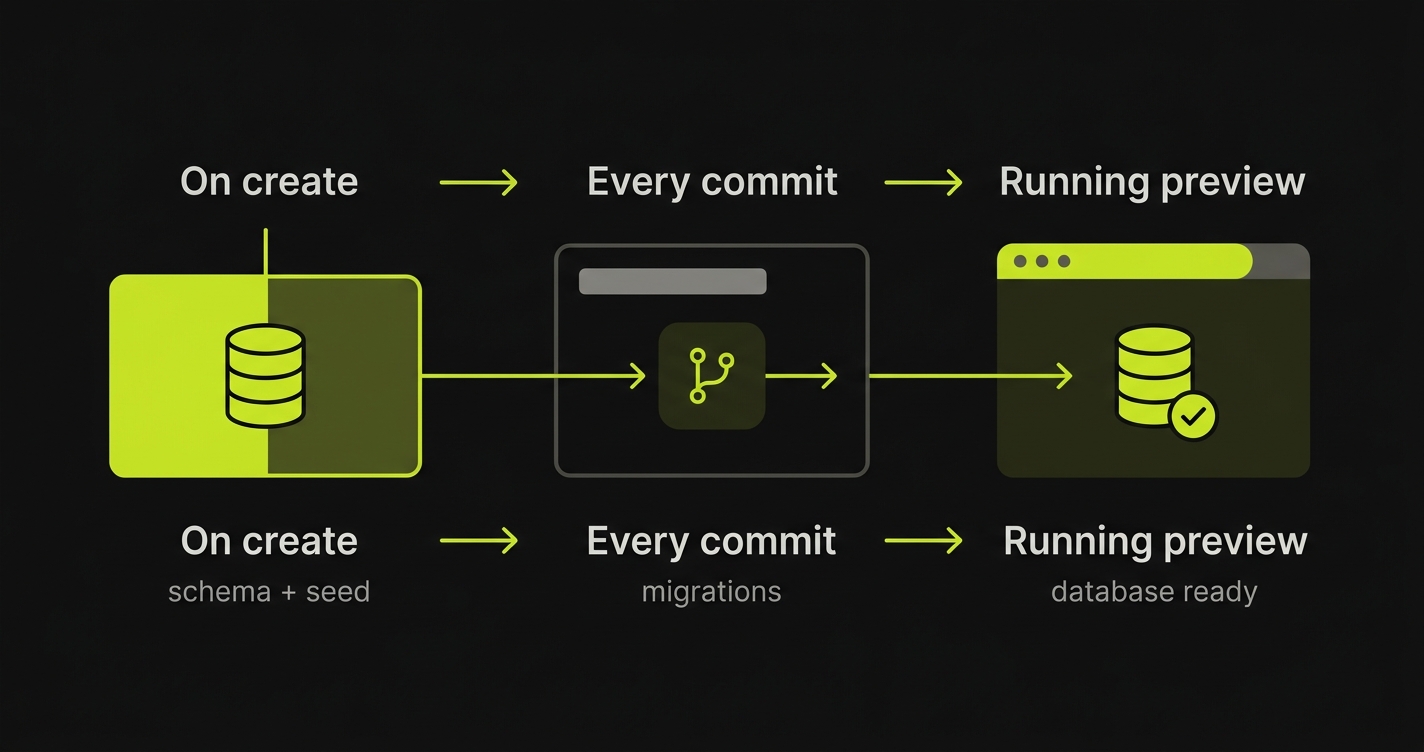
Databases are their own step in onboarding. Most apps declare at least one; many declare several. Add as many as your app needs - each gets its own card and its own setup.
Add the databases your app needs
A preview can run more than one database at once - Postgres for your data, Redis for your cache, Mongo for a document store - side by side. You add each from the engine palette, and each becomes an independent card where you choose a version:
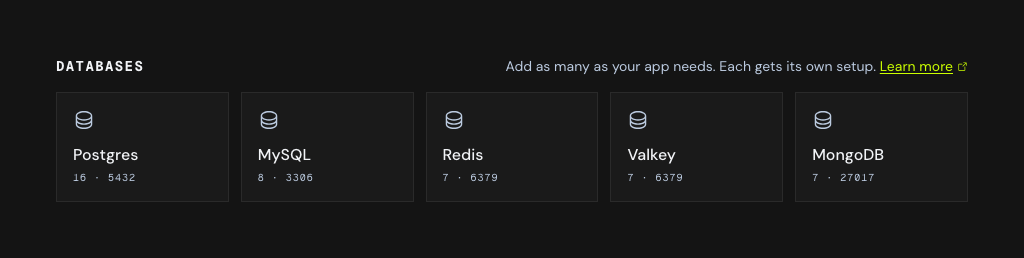
| Engine | Default port | Example version |
|---|---|---|
| Postgres | 5432 | 16 |
| MySQL | 3306 | 8 |
| MongoDB | 27017 | 7 |
| Redis | 6379 | 7 |
| Valkey | 6379 | 7 |
The engine sets the default port and pulls the right image; the Version field pins the exact tag, so a repo on an older engine is never forced onto ours. The Name is filled in for you (db, cache, mongo, …) and is what the connection string uses - edit it if you want a different one. Add a card per database, and the preview brings them all up together.
Caches usually need no setup tasks. Add a version and you’re done - or add an on-create task if you pre-warm the cache.
Setup tasks
An empty database rarely matches what your app expects. It needs tables, seed rows, and the migrations that have accumulated since. Those steps almost always live in your repo - a db/schema.sql, a seed script, a migrate command - not in the database image, which is built for production and often ships none of them.
So Autonoma runs each setup task as a one-off job from one of your apps’ built images, and you choose which app. That image is what the command sees.
For an app using the Manual build method this means your repo is right there - the build copies the repository in, so psql < db/schema.sql finds the file. For an app built from a Dockerfile, the command sees only what that Dockerfile put in the image. A production Dockerfile that copies build output and nothing else will not have db/schema.sql, so either use a task whose app has the file, or add it to the image.
Tasks are split by when they run, with sensible defaults you can override. Both sections are optional.
Run once - on create
Schema and seed data go here - the tasks that bring a fresh database to life the first time it’s created. The command runs from the chosen app’s image, so db/schema.sql is available if that image contains it - which a Manual build does, since it copies the repository in.
# on createpsql < db/schema.sqlnpm run seedIf your app already builds its own schema on boot, leave this section empty - or, once you’ve added tasks, Skip - my app handles this clears them in one click.
Run on every commit / PR
Migrations go here, so every preview reflects the current branch:
# on every commitnpm run migrateThese run on every full preview deploy - each new commit pushed to the PR. A per-app redeploy from the dashboard re-rolls just that one app and does not re-run setup tasks, so reach for a full redeploy when you need migrations applied. Skippable too, if the app migrates itself on startup.
Defaults, not rules. Schema and seed belong on-create; migrations belong on every-commit. Nothing is forced, but a task’s group is fixed when you add it - you choose by which group’s Add task you press, so moving one means deleting it and adding it back in the other group.
Where a task runs
Every setup task runs as a one-off job from a chosen app’s image, after the databases are up and before your apps start. What you choose is which app’s build the command borrows:
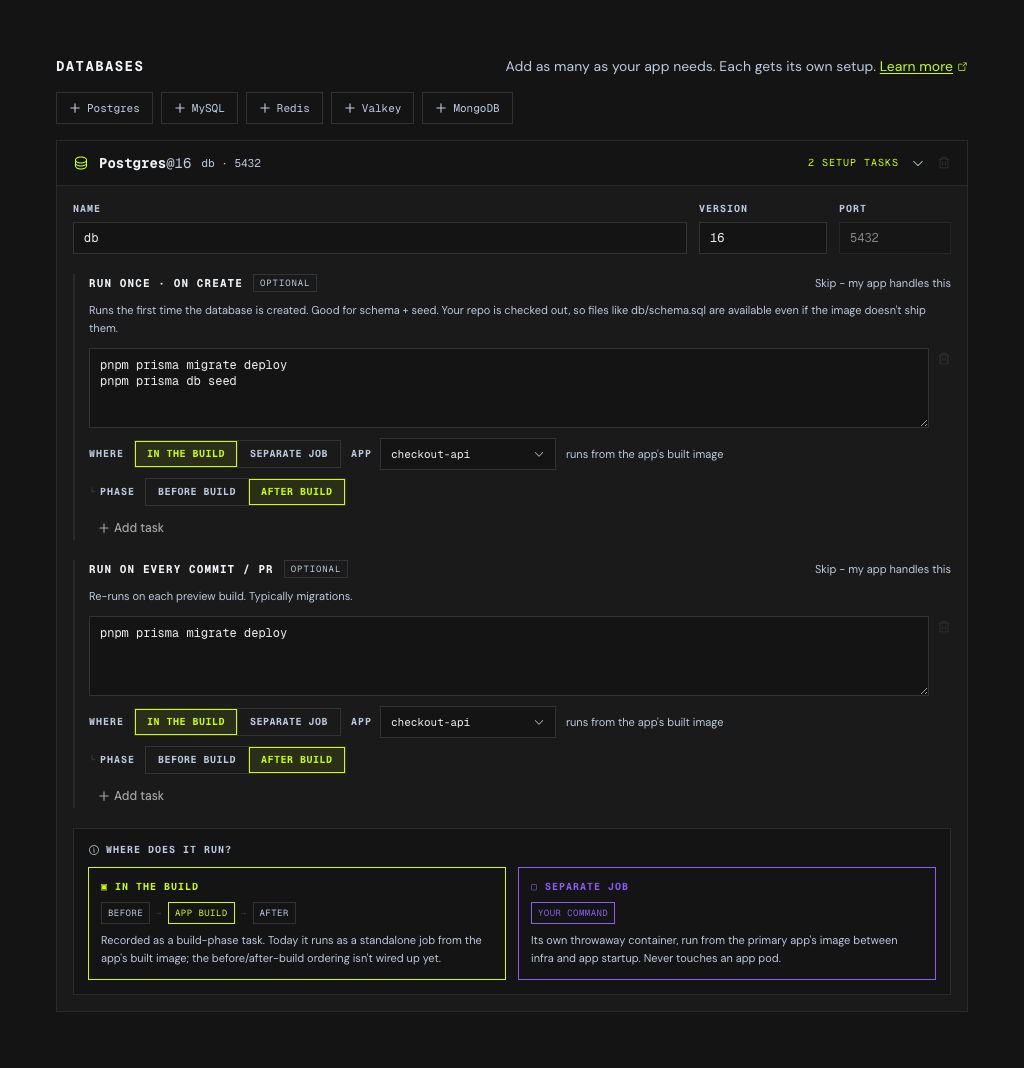
The Where control is per task, and the Phase row underneath only applies to in the build - a separate job has no build to sit before or after. The lime and violet in the explainer are the same colours the control uses, so you can read a configured task at a glance.
| In the build | Separate job | |
|---|---|---|
| Image | A chosen app’s built image | The primary app’s built image |
| What the command sees | That app’s image, including its build output | The primary app’s image |
| Reach for it when | The task needs a specific app’s build output or its installed dependencies | The task just needs the primary app’s image |
In the build runs the command from the app you pick, so the task sees that app’s image and everything its build produced - reach for it when a step depends on a particular app (a compiled asset, an installed CLI).
Separate job runs the same command against the primary app’s image, standing on its own - reach for it when a setup step just needs the repo and shouldn’t be tied to any one app.
Which repository it runs against
An in-build task’s App picker chooses which app’s image the command borrows. It appears whenever the preview has more than one app - not more than one repository - so a single-repo project that deploys a frontend and an API will see it. With exactly one app the picker is hidden and that app is used. A separate Repo picker appears when the preview spans more than one repository.
The before / after position on an in-build task is recorded but not yet honored: every setup task runs as a standalone job between the databases coming up and the apps starting. An in-build task does use the app you picked; a separate job falls back to the primary app. So build-step ordering is captured for when that lands, but does not change anything today.
Next steps
- Apps and builds - how each app in your repo becomes a running container
- Lifecycle hooks - run commands at other points in a preview’s life
- Multiple repositories - pull apps, and their databases, from more than one repository into a single preview